
Firewalls
Sophos Firewall setup
Add Cybora threat feeds to Sophos Firewall with Active Threat Response and third-party threat feeds for automated indicator blocking.
Last updated: August 14, 2026
On this page
Use this guide to add the Cybora feed to Sophos Firewall using Active Threat Response and third-party threat feeds.
Cybora complements Sophos threat feeds with independently curated signals. The feed adds another security layer and does not replace existing controls such as Sophos X-Ops, IPS, EDR, or SIEM.
Requirements
- Sophos Firewall 21.0 or later.
- Xstream Protection Bundle. Third-party threat feeds are included in this bundle. No additional Sophos Central license is required. Check the status under Administration > Licensing.
- A firewall rule that allows internal traffic to the WAN.
- For validation and troubleshooting, configure logging as described under Set up logging and the dashboard.
Configure traffic detection
A feed can synchronize successfully without blocking an expected match. This does not automatically mean that something is wrong with the feed. Sophos Firewall uses different functions to identify traffic depending on the indicator type. The following overview shows what should be configured before the first test:
- IPv4 addresses: A firewall rule for internal traffic to the WAN.
- Domains: A firewall rule with Application Classification or an IPS policy enabled.
- URLs: The domain requirements plus HTTPS decryption so the firewall can read the complete URL path.
IPv4 addresses are the most straightforward: traffic must pass through a matching firewall rule from the internal network to the WAN. For domains, Sophos also requires Application Classification or an IPS policy. If Sophos Firewall acts as the DNS server, it can detect domain matches through the DNS module. If clients use an external DNS server or the traffic runs over HTTPS, the IPS-related settings must also be correct.
URL feeds require some additional attention. Without decryption, the firewall can see only the domain name in the SNI header of an HTTPS connection, not the complete path such as /login or /payload. For a URL indicator to match reliably, decrypt HTTPS traffic in one of the following ways:
- In web proxy mode, enable
Use web proxy instead of DPI engineandDecrypt HTTPS during web proxy filteringunder Web filtering in the firewall rule. - In DPI mode, leave
Use web proxy instead of DPI enginedisabled. Then create a rule with theDecryptaction for internal-to-WAN traffic under Rules and policies > SSL/TLS inspection rules.
If an expected match is missing, check the firewall rule first, followed by Application Classification or IPS, HTTPS decryption, and finally any configured exceptions. Threat Exclusions, an allowing web policy, entries under Web > Exceptions, or an SSL/TLS rule with Don't Decrypt can prevent an IoC from being detected or blocked.
Response to a match
With the Block action, Sophos Firewall logs the match and blocks the identified connection. Monitor logs the match but allows the traffic. The traffic must still pass through the appropriate firewall module, and no exclusion can bypass detection.
Security Heartbeat is not required for threat feeds. If Synchronized Security is configured and a Sophos-managed endpoint tries to contact a malicious server, the endpoint can receive a red Security Heartbeat status. The firewall identifies the affected endpoint, blocks its traffic, and can include the IoC, host, user, and process information in the logs. Lateral Movement Protection isolates the compromised endpoint to prevent an attacker from moving laterally through the network. See the Sophos description of the related firewall modules and Synchronized Security for more details.
Steps
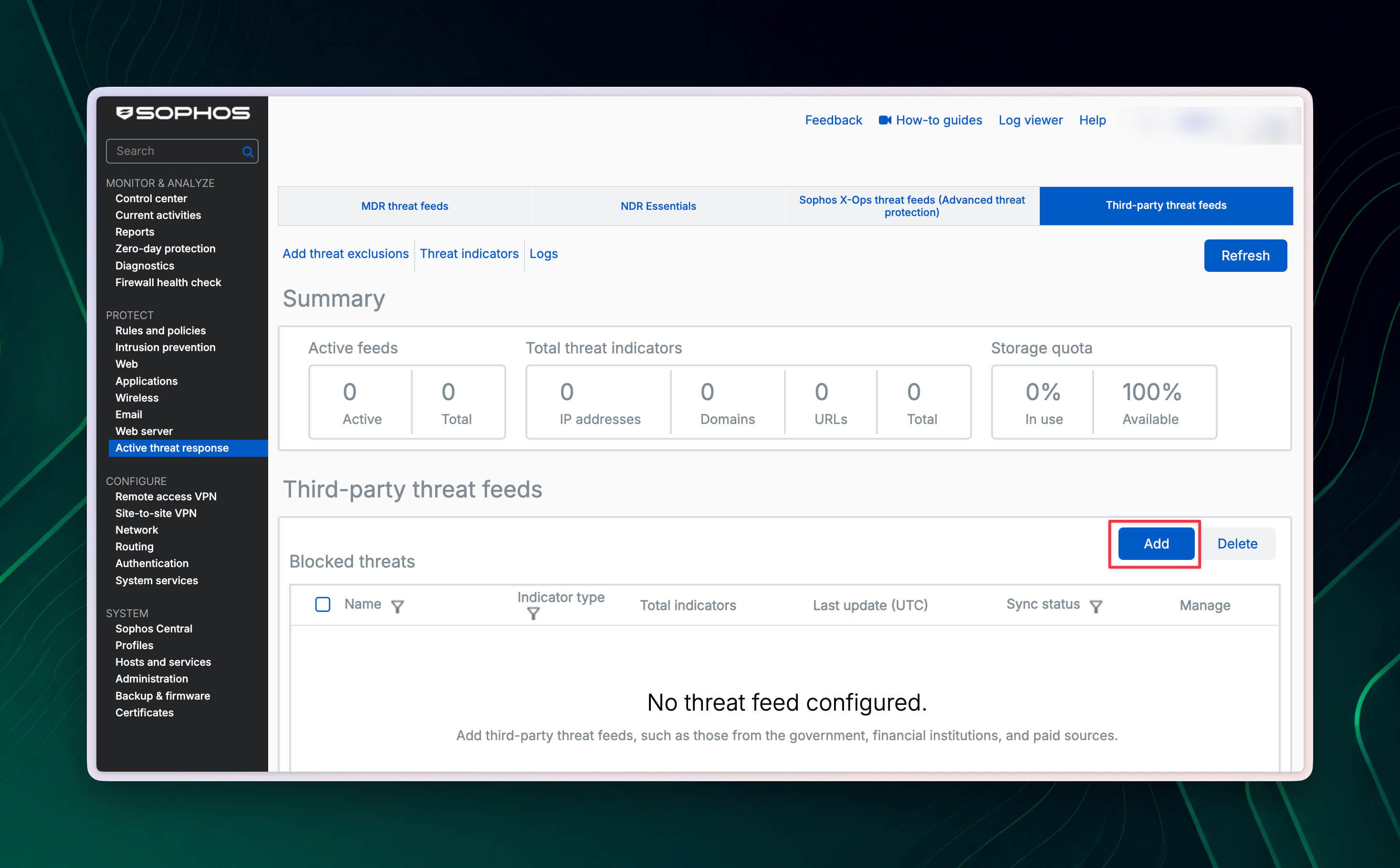
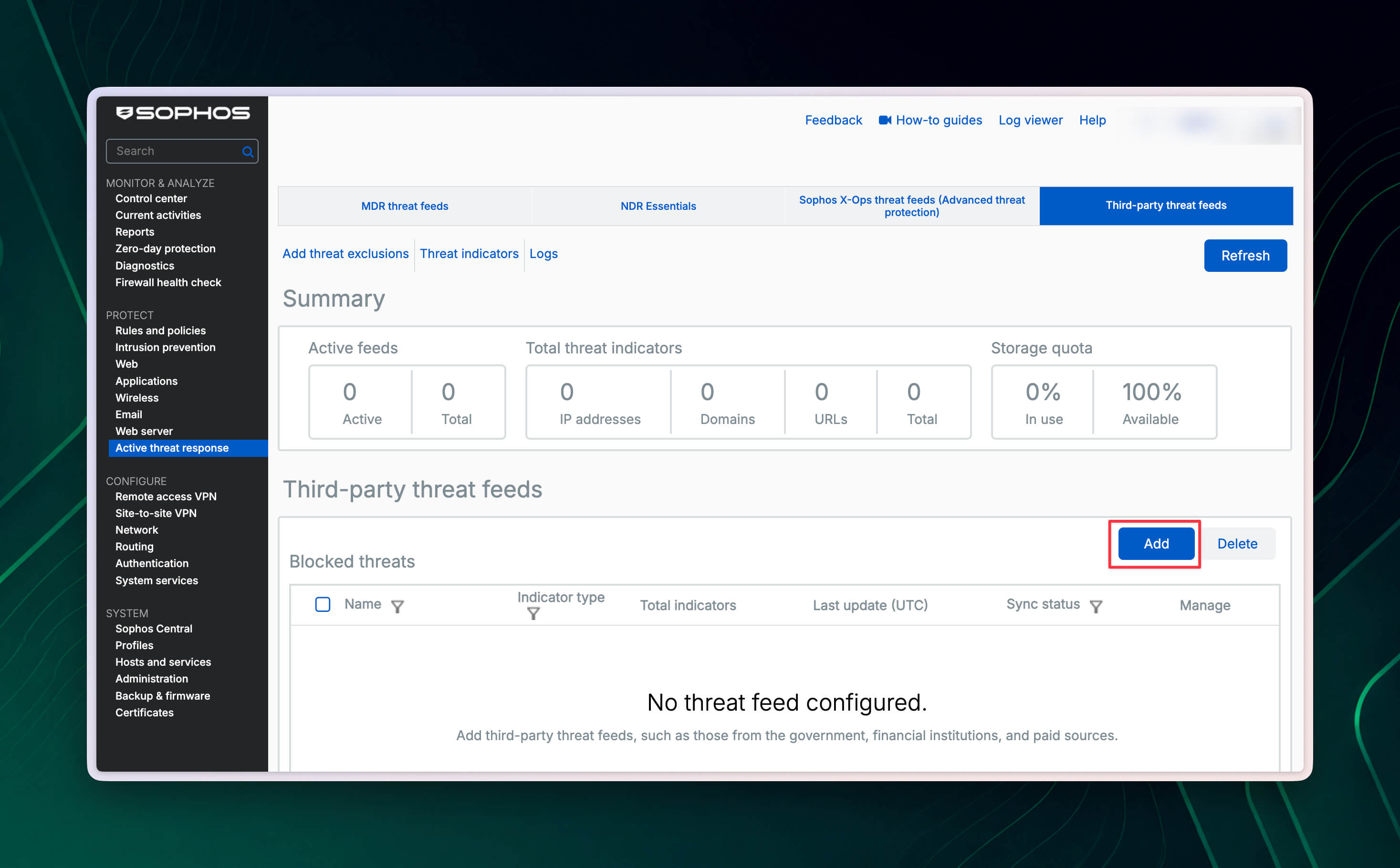
Go to Protect > Active threat response > Third-party threat feeds and click Add.
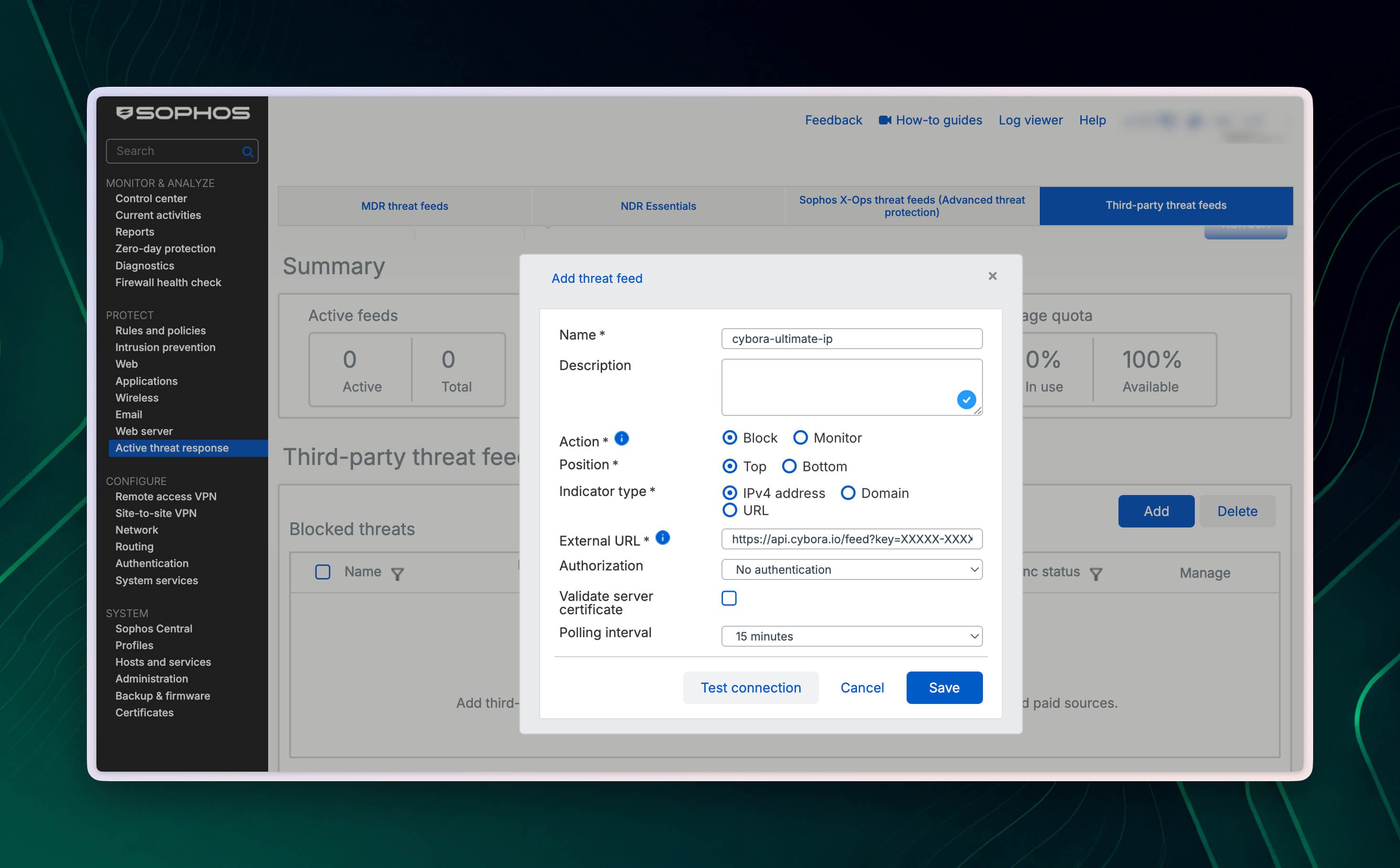
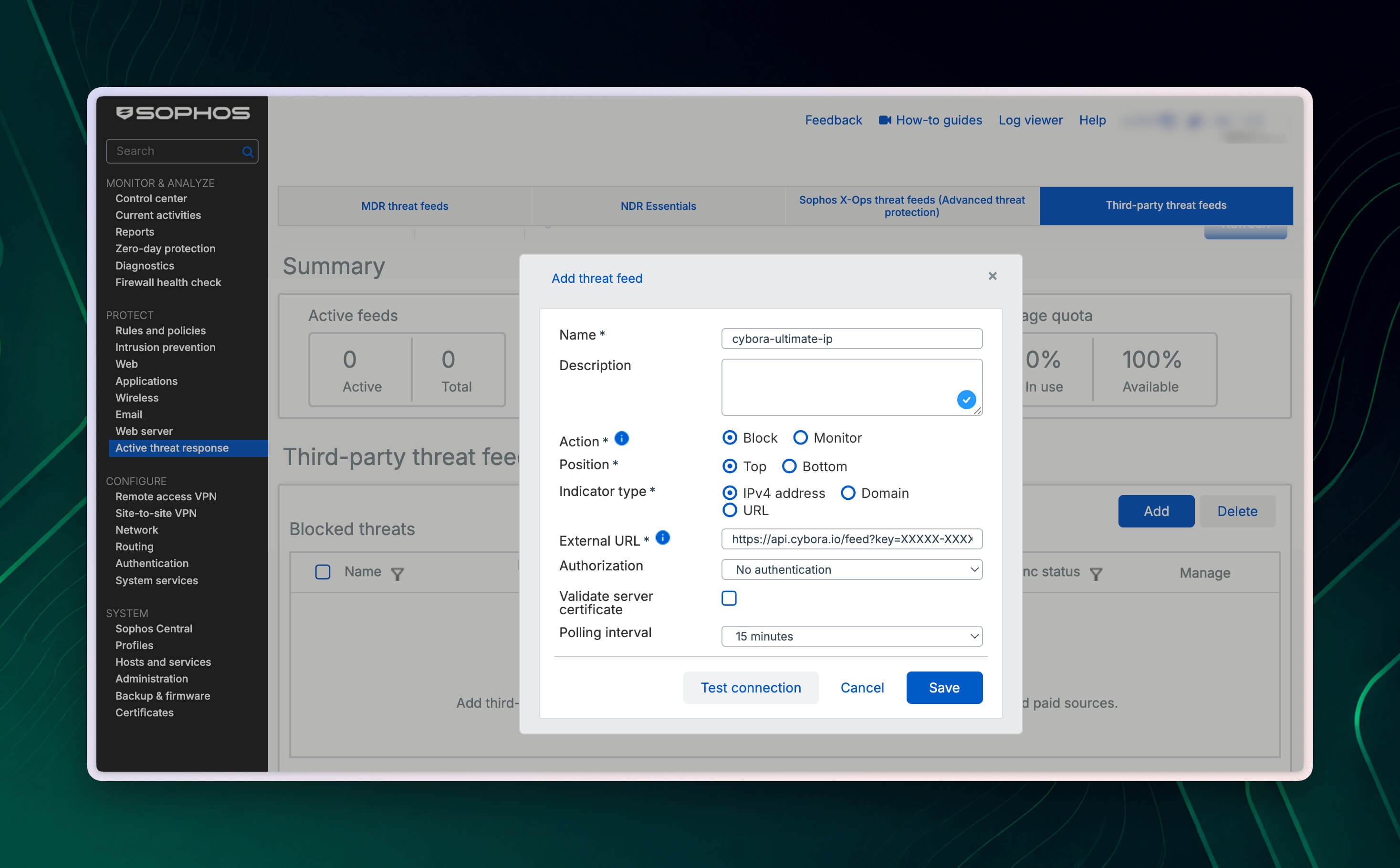
Enter a unique name, for example
cybora-ultimate-ip. The description is optional.Under Action, choose the required action:
Blocklogs and blocks matches. This is our recommendation for production use.Monitorlogs matches but does not block the traffic.
Under Position, choose where the feed appears in the list. Sophos evaluates blocked and monitored feeds in the displayed order and logs the first match. Select
Topif the Cybora feed should be checked before the feeds below it.Select the Indicator type that matches the
typeparameter in the Cybora feed URL:IPv4 address,Domain, orURL. If the plan includes multiple indicator types, create a separate feed configuration with the matching URL for each type.Under External URL, enter the complete Cybora feed URL. The personal license key is sent by email after purchase. The feed URL format and license key guide explains how to build the correct URL for IPv4 addresses, domains, or URLs.
Under Authorization, select
No authentication. With Cybora, the key is already included as thekeyparameter in the feed URL.Enable Validate server certificate so Sophos Firewall verifies the TLS certificate of the Cybora endpoint. If a certificate error occurs, check under Certificates > Certificate authorities that the issuing public CA is available.
Set the Polling interval to match the Cybora plan exactly. Do not request the feed more frequently than the plan allows. Only one request is permitted within the allowed interval. Polling too frequently can cause the feed to be blocked.
On XGS 87/87w, 88/88w, and 107/107w models, only polling intervals of 24 hours, 7 days, and 30 days are available. In this case, select the available interval that does not query more frequently than the Cybora plan allows.
Click Test connection. If the test is successful, click Save.
Sophos Firewall now retrieves the feed automatically at the configured interval and keeps the IoC list up to date. The feed file contains one indicator per line. Sophos does not support IPv6 addresses, IP ranges, network addresses, wildcard domains, or regular expressions in these feeds.
Configure threat exclusions
If a legitimate host or service is blocked incorrectly, create a targeted exclusion. Use Threat Exclusions sparingly: an exclusion applies to all Active Threat Response modules, not only the Cybora feed. The excluded traffic is no longer matched against the threat feeds and may therefore introduce a security risk.
- Go to Protect > Active threat response and click Add threat exclusions above the feed overview.
- For existing hosts or networks, click Add new item under Host and network exclusions and select the required objects.
- Under Threat exclusions, enter individual IP addresses, domains, or URLs and add each entry with the plus button. An entry can contain up to 128 characters.
- Review the list and click Apply. Exclusions that are no longer needed can be edited or removed in the same dialog.
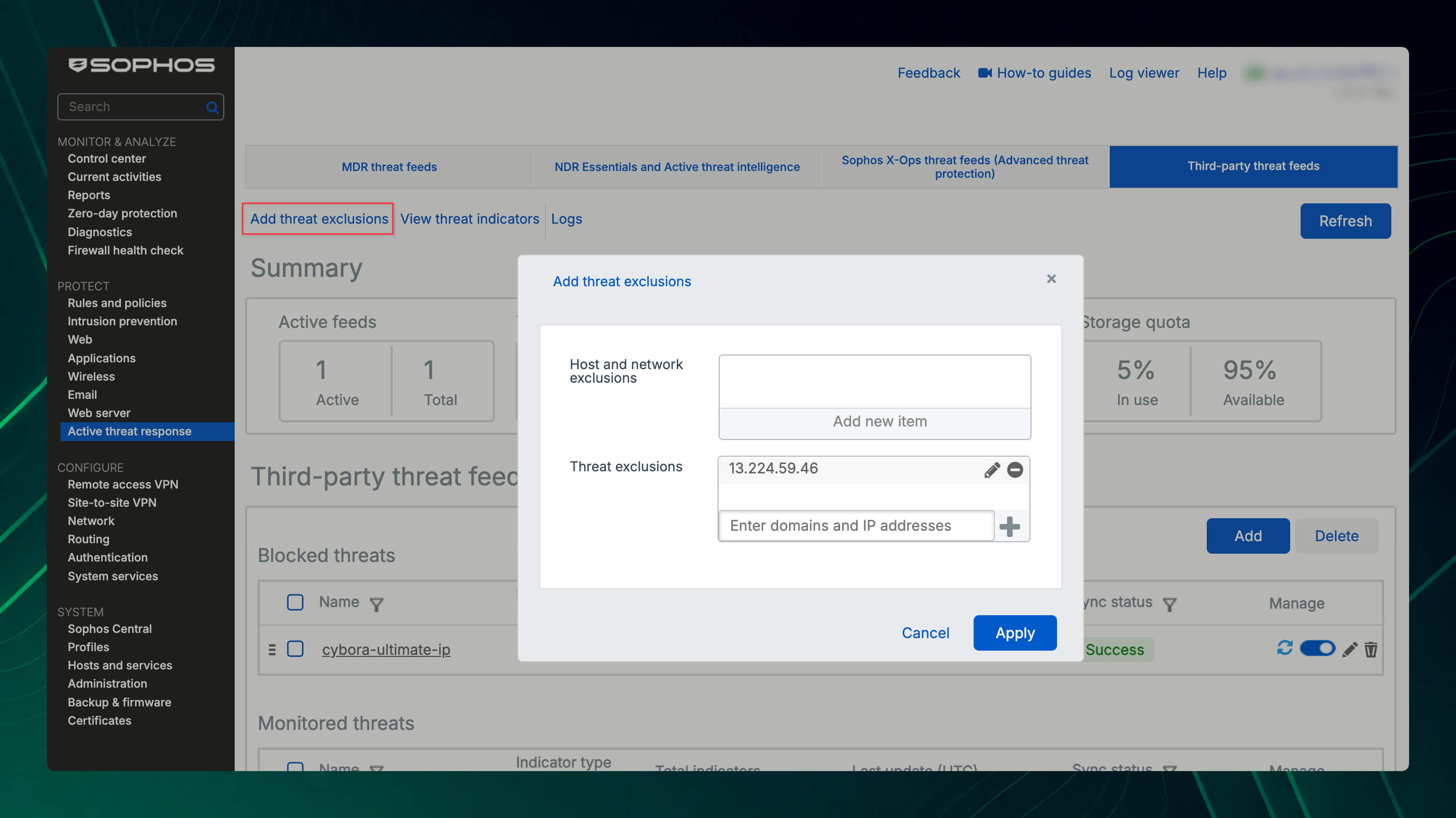
Create an exclusion only after reviewing the event in the logs and confirming that it is a false positive. Prefer the specific host, individual IP address, domain, or URL over a broad network exclusion. See the Sophos threat exclusion instructions for further details.
Set up logging and the dashboard
With the correct log settings, you can identify which IoC was detected, which Active Threat Response module processed the match, and whether the firewall blocked the traffic or only logged it.
- Go to System services > Log settings.
- Under Active threat response, enable the required log categories in the Local reporting column:
Destination match for all trafficrecords destination IP address, domain, and URL matches for outbound traffic.Remote source match (inbound traffic)records source IP address matches for inbound forwarded traffic such as DNAT and WAF. This category is off by default and must be enabled explicitly for these events.Local source match (outbound traffic)records local source IP address matches for outbound traffic.
- To send the events to a syslog server or Sophos Central as well, enable the same categories in the corresponding column. Central reporting appears only after sending reports and logs has been enabled on the firewall’s Sophos Central page.
- Click Apply.
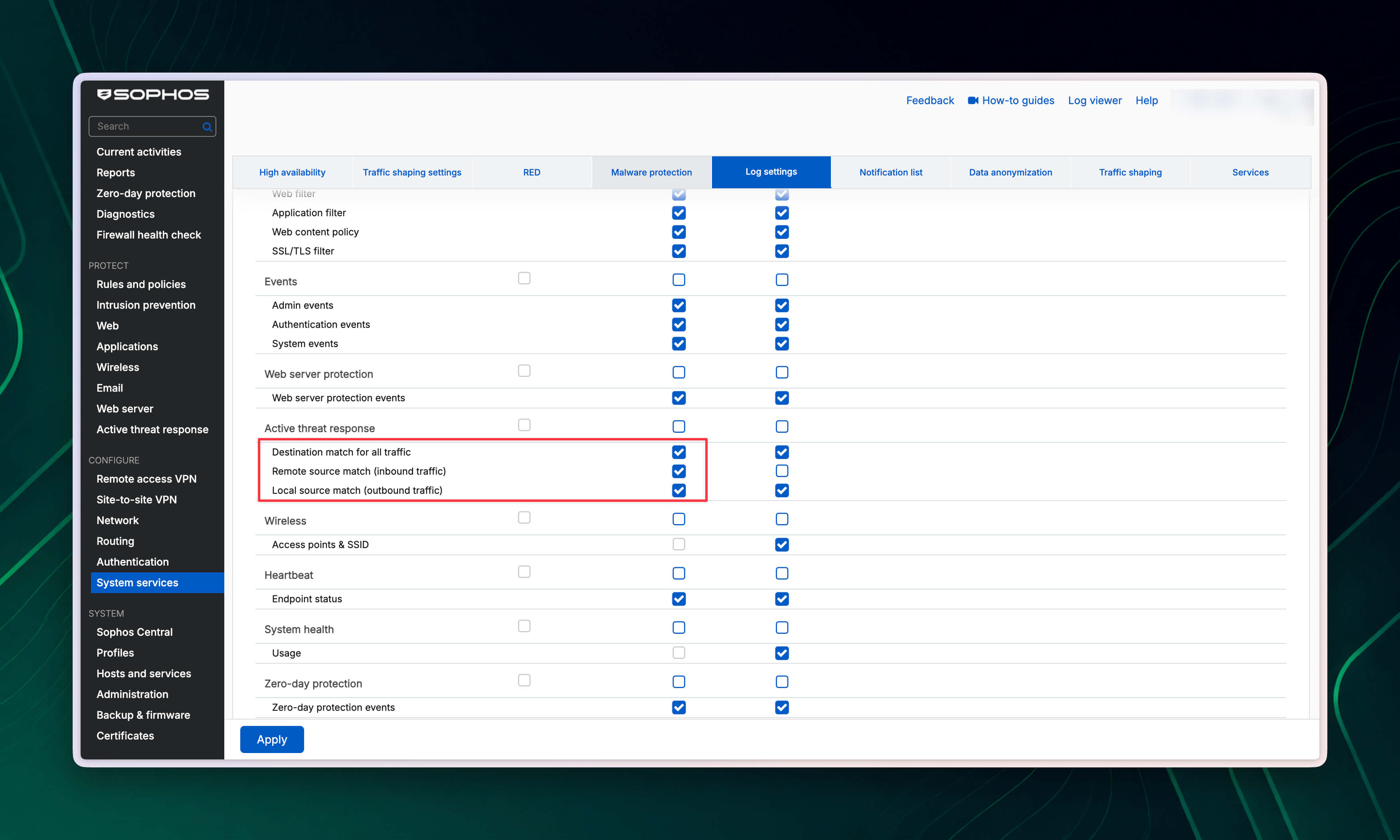
Where a match is logged
The log component depends on the indicator and the traffic path:
- An IPv4 address in forwarded traffic is handled by the Firewall module.
- A DNS request sent to Sophos Firewall itself is handled by the DNS module.
- A DNS request sent to another DNS server is handled by IPS.
- HTTPS traffic in DPI mode is handled by IPS together with SSL/TLS inspection.
- HTTPS traffic in web proxy mode is handled by the Web module.
HTTPS decryption is still required for a complete URL path. In the detailed view or forwarded syslog events, log_component shows whether Firewall, DNS, IPS, or Web processed the match. The threatfeed field identifies the triggering module or configured third-party threat feed. This makes it possible to confirm whether the match was assigned to Cybora, MDR, NDR Essentials, or Sophos X-Ops.
In Log viewer, select Active threat response to inspect individual events and blocked IoCs. In the Control Center, the Active threat response widget shows configured third-party threat feeds, their synchronization status, and the number of threats blocked by those feeds. On devices without local reporting, including XGS 87/87w and 107/107w, the Reports button does not appear in the widget. The Sophos logging and alert instructions and the Active Threat Response widget description provide more detail.
To receive log-and-drop events by email or SNMP, enable the required Active Threat Response events under System services > Notification list. Alerts for Remote source match (inbound traffic) are not forwarded to Sophos Central, but the related logs remain available in Central Firewall Reporting. The Sophos ATR notification reference lists the available events.
Sophos Firewall processes the modules in a fixed order: MDR threat feeds first, followed by NDR Essentials, Sophos X-Ops, and finally third-party threat feeds. If an earlier module already blocks an IoC, the match may be logged there without the Cybora feed being evaluated. With Log only or Monitor, individual events may instead appear for multiple modules. Keep this evaluation order in mind when an expected match does not appear under the Cybora feed.
Different log files are relevant for deeper troubleshooting:
atr.logshows licensing and configuration status, whileatr-service.logrecords service startup and shutdown.- For IPv4 IoCs, also check
firewall_rule.log. - For domain and URL IoCs, check the DNS, SSL/TLS inspection, and web proxy logs for the relevant traffic path, such as
dnsd.log,ips.log,httplogd.log, andawarrenhttp.log.
The Sophos troubleshooting log file reference provides an overview.
Understand synchronization status
The Sync status shows whether Sophos Firewall could retrieve and process the feed. A successful retrieval does not yet confirm that a specific traffic match will be detected or blocked:
Success: The connection orGETrequest to the feed URL was successful.Fetching: The feed is currently being downloaded.Authentication error: Check the credentials and possible TLS handshake errors.Connection error: Check internet connectivity, reachability of the feed server, and HTTP errors such as 404, 500, or unexpected redirects.SSL/TLS error: Under Certificates > Certificate authorities, check that the required public or private CA is available.Failed: Check that the feed URL returns a valid plain-text file with one supported indicator per line.Storage full: The shared storage quota cannot hold the complete list. See the next section for guidance.
The Sophos synchronization status reference lists additional causes. When restoring a firewall backup, the feed configurations are restored, but the previously downloaded IoC lists are not. After the restore, the firewall retrieves the feeds again and reapplies the configured action. See the Sophos Active Threat Response FAQ for more information.
Storage limits and Storage full
Sophos Firewall provides one shared storage quota for all third-party threat feeds. There is no separate IoC count limit for an individual feed. IPv4 addresses, domains, and URLs share the total available storage, so a single large feed can consume the entire quota and prevent additional indicators from being stored.
In SFOS 22.0, you can configure up to 50 third-party threat feeds. This is a configuration count and is independent of the storage quota or the number of stored IoCs. Because Sophos requires separate configurations for IPv4 addresses, domains, and URLs, three indicator types also consume three of the 50 available entries.
The Sophos KBA gives the following approximate maximum values:
| Models and platforms | IPv4 addresses | Domains | URLs |
|---|---|---|---|
| XGS 87(w) XGS 88(w) XGS 107(w) XGS 116(w) All virtual and cloud firewalls | 180,000 | 98,000 | 18,000 |
| XGS 126(w) XGS 118(w) | 270,000 | 140,000 | 28,000 |
| XGS 136(w) XGS 128(w) XGS 138 XGS 2100 XGS 2300 | 900,000 | 490,000 | 94,000 |
| XGS 3100 XGS 3300 XGS 4300 XGS 4500 | 2,700,000 | 1,480,000 | 280,000 |
| XGS 5500 XGS 6500 | 4,500,000 | 2,470,000 | 470,000 |
| XGS 7500 XGS 8500 | 8,800,000 | 10,100,000 | 1,900,000 |
The domain values are based on an average length of 64 characters and the URL values on 512 characters. Longer entries reduce the number that can be stored, so these figures are guidelines rather than guaranteed limits.
For virtual and cloud firewalls, the KBA explicitly lists a constant limit regardless of appliance size. Additional RAM therefore does not increase the stated guideline of approximately 180,000 IPv4 addresses, 98,000 domains, or 18,000 URLs.
If a feed shows Storage full, check Total threat indicators and Storage quota under Active threat response > Third-party threat feeds. Delete redundant feeds and use smaller lists that are more closely tailored to the environment. The firewall continues polling the feed at the configured interval and updates the list again when sufficient storage becomes available.
Version note
In Sophos Firewall 21.x, Active Threat Response does not match the source IP for certain inbound traffic types, including DNAT and WAF traffic.
Starting with Sophos Firewall 22.0, Active Threat Response also considers the source IP for inbound forwarded traffic such as DNAT and WAF, improving feed coverage for these scenarios.
Further reading
- Storage limit for third-party threat feeds
- Third-party threat feeds
- Configure third-party threat feeds
- Licenses for threat feed modules
- Firewall configurations for threat feeds
- Active threat response in Sophos Firewall 22.0
Validation
After saving, check the following under Active threat response > Third-party threat feeds:
- Sync status shows
Success. - Total threat indicators contains the expected number of IPv4 addresses, domains, or URLs.
- Under Threat indicators, individual IoCs can be searched in the loaded feed.
- Under Logs, matches appear for traffic associated with an IoC.
- In the Control Center, the Active threat response widget shows the expected feed and synchronization status.
When using domain or URL feeds over HTTPS, also check that decryption and the required rule settings are configured correctly so the firewall can identify the traffic as expected. If a feed has no relevant matches for an extended period, review whether it is needed in the environment. Unneeded feeds can be removed to free storage for more relevant IoCs.