
Firewalls
OPNsense setup
Configure Cybora threat feeds in OPNsense as URL Table Aliases and use them in firewall rules to block malicious IP infrastructure.
Last updated: September 2, 2026
On this page
Use this guide to integrate Cybora with OPNsense using native firewall aliases. In OPNsense, the cleanest native workflow is to consume Cybora as an IP-based URL Table alias and then use that alias in firewall rules.
What OPNsense can do with a Cybora feed
- OPNsense can fetch remote IP feeds into a URL Table alias and keep the alias updated automatically.
- The imported alias can then be used in firewall rules anywhere you would normally use a host or network alias.
- Domain feeds can be added separately through the Unbound DNS blocklist function.
- Cybora URL feeds containing complete URLs or paths can’t be imported directly through OPNsense aliases or Unbound DNS blocklists. URL-path filtering requires a separately configured web proxy and a different integration format.
Choose the correct integration for each feed type
- IPv4: Under
Firewall > Aliases, selectURL Table (IPs)and use a Cybora feed URL withtype=ipv4. Here, “URL” refers to the download location. The downloaded file must still contain IP addresses. Don’t selectURL (IPs), because that type only downloads the list once, orURL Table in JSON format (IPs), because Cybora delivers plain text rather than JSON. - Domain: Don’t select an option from the alias type dropdown. Add the feed URL with
type=domainunderServices > Unbound DNS > BlocklistsinURLs of Blocklistsinstead. - URL: The Cybora
type=urlfeed isn’t directly compatible with this alias workflow.URL Table (IPs)doesn’t accept complete URLs; it only downloads IP addresses from a URL. The JSON variant also extracts IP addresses, so providing the same URL indicators as JSON wouldn’t solve this limitation. OPNsense can filter domains and URL paths through an optional web proxy such asos-OPNProxy, but that requires separate proxy configuration, HTTPS inspection for complete encrypted paths, and a proxy-compatible feed integration.
Before you start
- Use an OPNsense release that supports Firewall > Aliases and URL Table aliases.
- Make sure the firewall can reach your Cybora feed URL over HTTPS.
- Use an IP-based Cybora feed for the native OPNsense alias workflow.
- The remote feed should stay in plain text format with one IP address per line.
Create the alias
The alias overview under Firewall > Aliases is the starting point. Select the plus button to create a new alias.
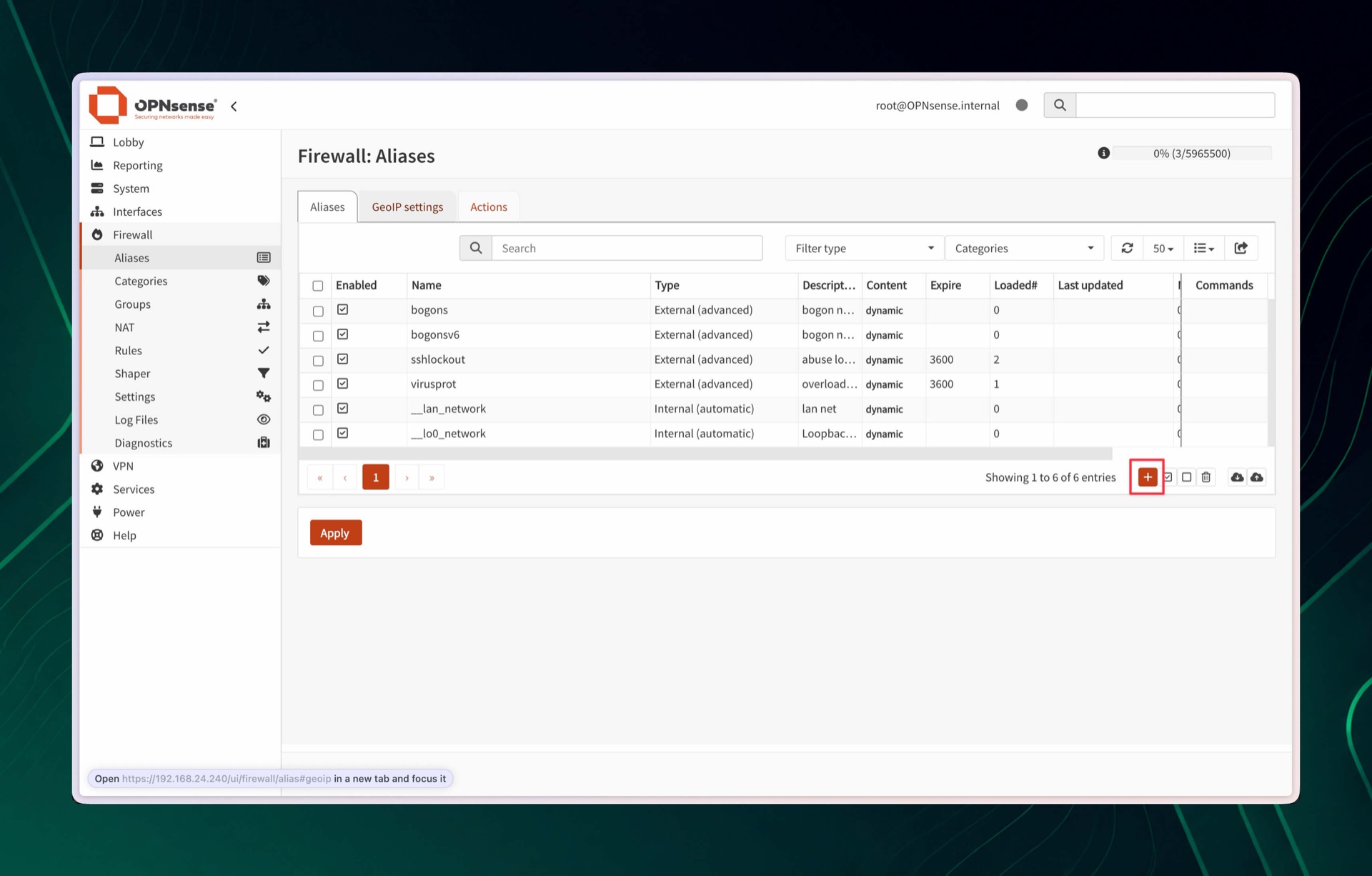
- Go to Firewall > Aliases and add a new alias.
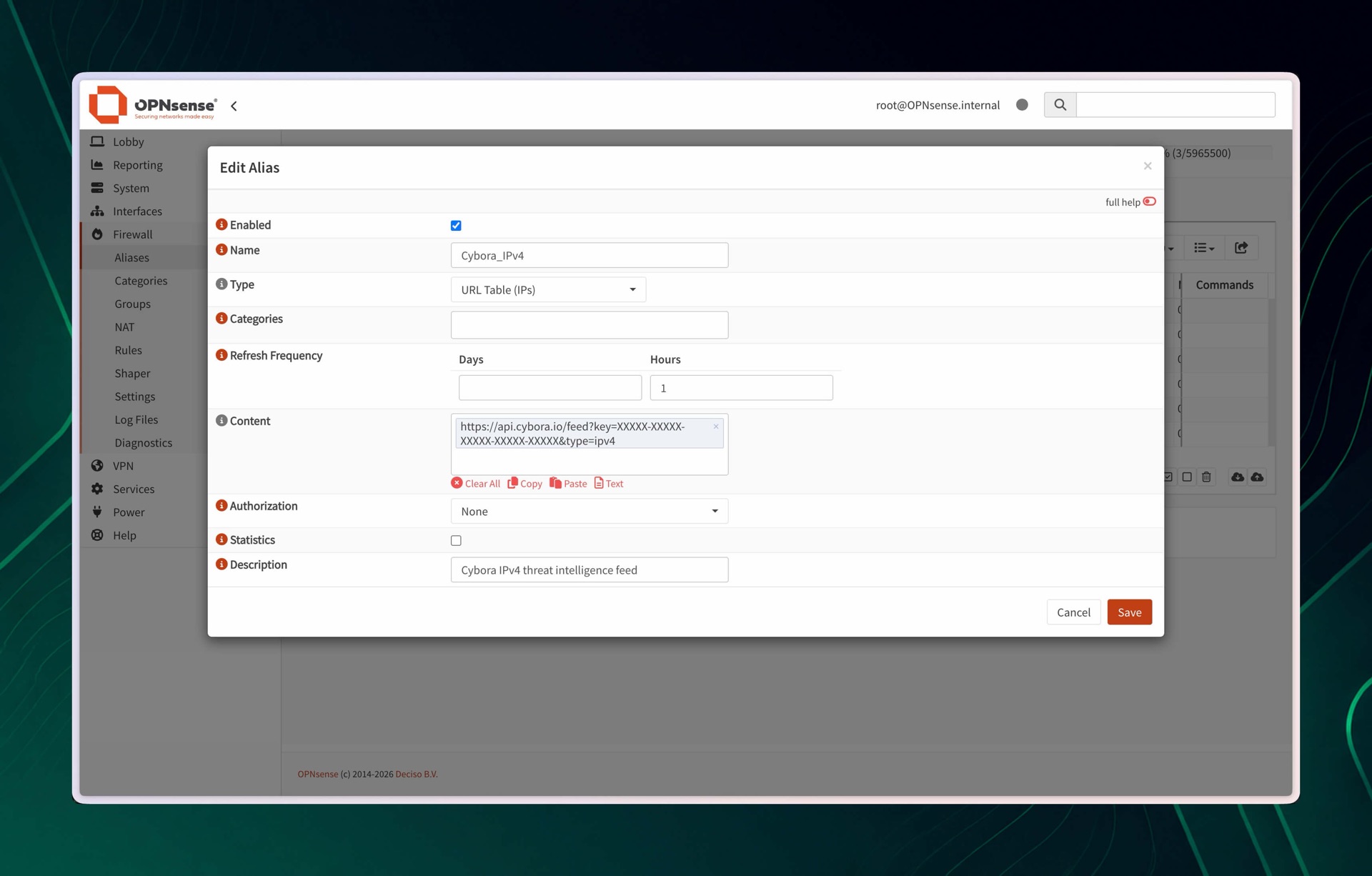
- Enter a clear alias name and description.
- Set the alias type to
URL Table (IPs). - Paste your Cybora feed URL into the content field.
- Set the Refresh frequency to match your Cybora plan as closely as your OPNsense setup allows. Do not poll the feed more often than your plan permits. Only one request is allowed within the permitted interval, and excessive polling may cause the feed to be blocked.
- Save the alias and apply the changes.
The following example uses the URL Table (IPs) type, an hourly refresh, and the Cybora feed URL with the key redacted.
Add a domain feed through Unbound DNS
- Go to
Services > Unbound DNS > Blocklists. - Enable the blocklist function and add the Cybora feed URL with
type=domaintoURLs of Blocklists. - Save and apply the configuration.
- Add the
Update Unbound DNSBLstask underSystem > Settings > Cronso OPNsense refreshes the list automatically. Choose an interval that doesn’t query the feed more often than your Cybora plan permits. - Make sure protected clients use OPNsense Unbound DNS as their resolver. Requests sent directly to an external DNS resolver can bypass this domain blocking.
The Cybora domain feed is plain text with one domain per line. OPNsense ignores its comment lines beginning with #. A domain feed blocks DNS resolution of the listed domains; it can’t distinguish individual URL paths on the same domain.
Apply the alias in policy
- Open the firewall rule where you want to block or match the imported indicators.
- Use the Cybora alias as the source or destination, depending on your policy design.
- Set the action to block, reject, or another action appropriate for your policy model.
- Enable logging on the rule so you can confirm matches in live traffic.
- Apply the updated firewall configuration.
Validation
- Go to Firewall > Diagnostics > Aliases and inspect the loaded alias contents.
- Confirm that Last updated changes after the alias refreshes.
- Use Find references or the live firewall logs to verify that the alias is being matched by the intended rules.
- Test with known matching traffic and confirm that the rule behaves as expected.